I uploaded my CGI Perl program and the web server says Internal Server Error
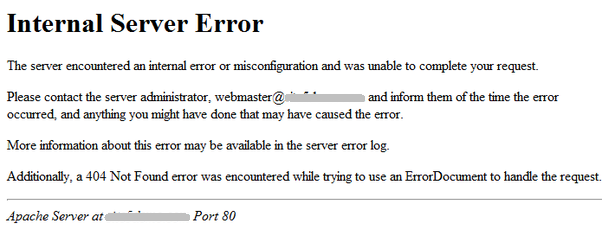
When you install CGI scripts (PERL-based or otherwise), you have to be sure to follow the instructions provided by the author of the software, with particular attention to the proper file permissions, and how you upload the file. These tips will help you debug the situation quickly and get your cgi script fully working on your Dream Line IT Solution Server.
Step #1: Check the File Permissions
FTP programs often will not set the proper permissions by default when you upload a CGI file, so you need to be cautious whenever you make changes or install a CGI script. If for some reason you were logging in as the user “root” to install the script, make sure the script is reset to be owned by the proper user of the web site you plan to run it on. Most CGI’s run best with a permission setting of 755. Depending on your web server’s security settings, you may need to make sure the folder you installed the CGI to is not world writable (also refered to as chmod ‘777’). See step #3 below for more help.
Step #2: Make Sure You Uploaded the File Properly Formatted
Some web authoring programs modify CGI programs as they upload them, as do some FTP clients! For example, the web publishing tool “Dreamweaver” will (by default) modify the way a CGI script is formatted when you edit and upload changes, by changing the carriage return and line feeds at the end of every line of the CGI script. This is a common error, and it usually happens when you transfer a file from Windows to Linux: the Windows software reformats all carriage returns and line feeds to something the UNIX server no longer understands (confusing the web server and generating those dreaded Internal Server Error messages).
To insure UNIX-compatible line feed formating for CGI files, make the following change in Dreamweaver:
Go to “Edit” menu -> “Preferences” option -> “Line break type” option -> Select “LF (Unix)”
Another method for advanced users is to log in to your server via the unix shell (SSH) and use the “dos2unix” command line tool to convert any files to proper UNIX encoding. You can also confirm this is the issue by trying to run the cgi program manually via the unix shell (SSH) prompt and looking for the term “xxxxx: bad interpreter: No such file or directory”, this means the first line of your cgi couldn’t be read by unix most likely due to mis-formated line feeds.
Step #3: Check the Log Files For More Details
If the first 2 steps do not solve the problem, then you need to check the web server log files and see the exact nature of the problem. To access your web logs, login to your web control panel (a link to your web control panel is located in the Dream Line IT Solution Customer Care Center) for easy access. Click on the view web logs button once you have accessed the web control panel, and you should be able to determine the specific error.
About Author
