How to setup HTTPS for WordPress
Setting up HTTPS
Removing insecure content
In this article we provide basic steps on making your WordPress website working via secure web protocol and some methods of removing insecure content which is preventing “green padlock” to show when SSL certificate is installed.
The first and only requirement before proceeding with this guide is to have SSL certificate activated and installed for your domain on our hosting server.
So lets start from enabling https://
Setting up HTTPS
In order to make WordPress fully secured you will need to adjust your WordPress Address (URL) and Site Address (URL) accordingly (https://yourdomain.com).
You can do it in your WordPress Admin Dashboard > Settings > General menu

From now on all your WordPress website pages can be accessible via https:// links.
Now you also need to force all links automatically redirect to https://.
You can do this either adjusting WordPress inner redirect structure, which we don’t recommend, or simply installing one of HTTPS plugins designed for this purpose.
You can install them using Plugins > Add New menu

We will use WordPress HTTPS (SSL) in order to force all pages over https:// connection.
Once it is downloaded and activated go into plugin Settings and:
1. Specify the secure link to your website in SSL Host field
2. Input single “/” to URL filters menu so that all pages are redirected to https://

NOTE: this plugin may be incompatible with other scripts, so in case of any redirect loops or other issues – try deactivating other plugins first (caching and protecting ones) or changing theme to a different one.
Removing insecure content
Your website may be visited via https://yourdomain.com link after SSL certificate installation, but it is still possible that you have insecure http:// links inside your pages.
Such links will prevent padlock from appearing and you will be getting messages regarding insecure content. These issues are resolved by replacing such links with their secured versions.
Locating such links can be difficult if you have large website with many pages, however you can use third party online tools which could locate such links by scanning your website:
https://www.whynopadlock.com
https://www.sslchecker.com/insecuresources
http://www.w3checker.net/insecuresources
In this example we used WordPress with SSL certificate installed and one of free themes from the web.
When https:// is used issues with insecure content appear

Apart from online checkers most of the modern browsers also provide developer tools which can give you the same information.
For example in Chrome you can enable this tool by right-clicking on your page > Inspect element. In the console below you can see warnings about insecure elements

This tool will provide you with list of insecure links on your website, however finding their location can be hard in case of complex websites as WordPress.
In this example links to insecure fonts and stylesheets are present.
Since default WordPress installation does not contain insecure links and content, theme is most likely causing the issue. In order to resolve it, find insecure links in theme scripts and replace them with secured analogues.
If you don’t know where exactly these links are located, you can use search cron command below or run the same command in CLI via SSH:
grep -r “http://” /home/cPuser/public_html/ > /home/cPuser/report.txt
(make sure you replace cPuser with your actual cPanel username)
NOTE: setting up cron job to run with the interval of less than 15 minutes may cause account resource overusage.
Once search is finished you can check report.txt file where all scripts/files containing insecure http:// links will be specified. Here is an example of the output:
/home/nctest/public_html/wp-content/themes/thbusiness/options.php:
‘std’ => ‘http://www.google.com/+Themezhutthemes’,
/home/nctest/public_html/wp-content/themes/thbusiness/languages/readme.txt:http://codex.wordpress.org/Function_Reference/load_theme_textdomain
/home/nctest/public_html/https/wp-content/themes/thbusiness/functions.php: wp_register_style(‘googleWebFonts’, ‘http://fonts.googleapis.com/css?family=PT+Sans:400,700,400italic’);
As you may see, all results are coming non-filtered, meaning that not-related lines will be present as well so you will need to either enhance search command with regular expressions for more precise search or closely inspect results as they are.
In raw results we can see the insecure link to fonts
http://fonts.googleapis.com/css?family=PT+Sans:400,700,400italic
which should be changed to
https://fonts.googleapis.com/css?family=PT+Sans:400,700,400italic
in /wp-content/themes/thbusiness/functions.php file.
NOTE 1: not every link will work after its change to https://, so before doing any changes we suggest backing up original file in order to restore it later if needed.
NOTE 2: you can also use plugins (e.g. SSL Insecure Content Fixer) for updating CSS and JavaScript http:// links.
Fortunately, updating font link in functions.php file was enough in order to resolve the issue in this example

In most cases however, number of such links is greater as they can also be located in plugins and other scripts of the theme in use.
Most of user-added content links are stored in the database.
In the next example Inspect tool shows that insecure link to an image is causing the issue.
We will find and replace it directly in the database

NOTE: we strongly recommend creating a backup of the database before doing any changes.
Search through database can be run via cPanel -> phpMyAdmin application:
1. Select the database of your website (it can be found in wp-config.php or file stored in website root folder).
2. Select Search and input http:// (you can also try searching exact link specified in Chrome -> Inspect tool ) as search pattern.
3. Select all tables and click Go

4. You will get a number of results among all tables, usually insecure links are stored in posts/pages so search through them first
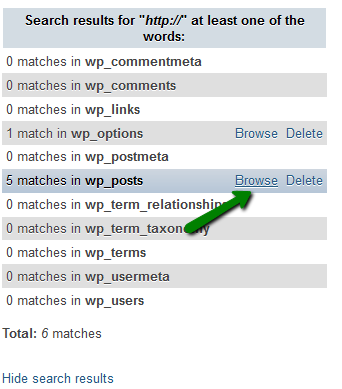
5. On the next page you should see all database cells containing search pattern, look through their content to locate the http:// link to external resource and replace it via https:// version

This should yield the desired results

If something is not working correctly after enabling https:// we suggest rechecking if any active plugin/extension/theme/template is causing the issue and if so, contact its developer for assistance with https:// implementation.
This is it!
Need any help? Contact our Helpdesk
About Author
