How to optimize hosting account space
In this article we will explain how to clean up your hosting account making some disk space for future needs.
Cases when your website files take more than 2-4 GB are quite rare, so before planning the upgrade to next tier because of the excessive disk space usage or transferring your account to another server, we recommend checking if all files in your account are actually necessary.
Unnecessary backups
Huge error_logs
Data of old websites
Big media files
Junk files
How do I check my disk space usage?
You can find the detailed disk usage stats of your cPanel account in section Files – Disk Space Usage menu

Inside you can check general statistic by folders or sort folders by their disk space usage

NOTE: hidden (dot) files and folders will not be shown in the list.
In order to see all files and folders you should navigate to File Manager menu in cPanel having “Show hidden files and folders” option checked.
Unnecessary backups
It is always a good idea to keep backups of your websites or whole hosting account.
However, if your website has a lot of media files or a big database, backups may take significant amount of the hosting account disk space. That is why old backups you need should be downloaded and stored on your local machine, and uploaded back only if required.
Apart from manually created backups you can have backups generated by:
1. Softaculous script.
Such backups are stored in /softaculous_backups/ directory in your hosting account

Both, automatic and manual backups, will be stored in this folder.
You can check (and delete) existing backups in Softaculous > Backups menu

The rotation of Automated backups can be adjusted in All Installations tab if needed:

It is possible to change the backup frequency and rotation period there:

2. Backups created via backup script/cron task (as shown in this article) are stored in the home directory along with manually created backups
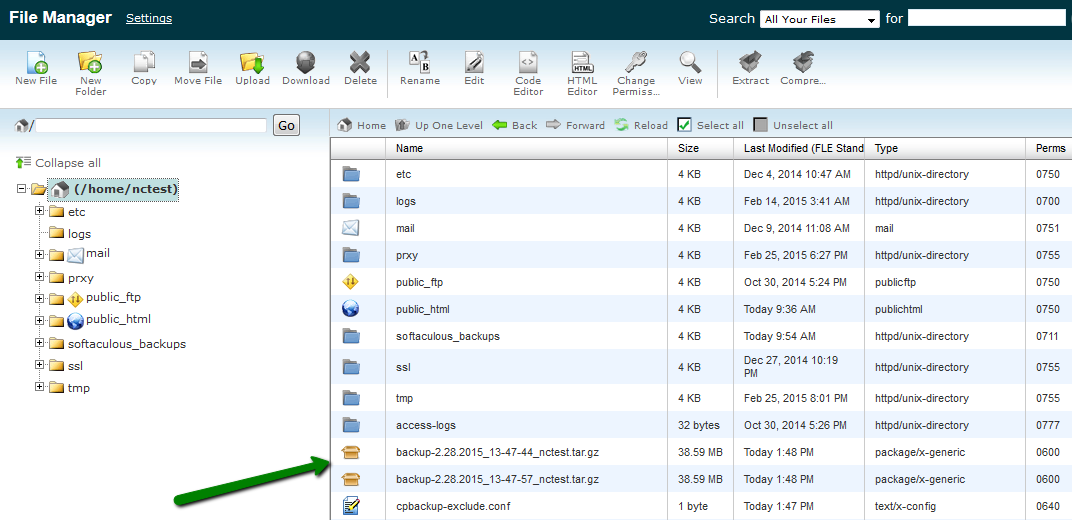
3. Backups created by CMS plugins/extensions are usually stored in the corresponding website folders.
To find out their exact location check Disk space usage menu or contact the script developer.
Huge error_logs
PHP error log is being generated or updated with the new entries each time your PHP scripts are not executed correctly.
If the file is not attended to in a timely manner, it can grow a couple gigabytes big in spite of being just a text file.
We always suggest checking the issue which is actually causing these errors.
But if you are sure that your website is working correctly and you fail to locate and resolve the matter, we recommend the following:
1) Contact us for assistance. We do not provide code-debugging support but we may sometimes resolve server-related issues which are causing big error logs, or at least point you in right troubleshooting direction.
2) If error_log contains only warnings and notices which are not affecting your website functionality, you can disable error logging in cPanel > Change PHP Version menu:

3) If you see a plugin or a theme name in the error_log entry, you can contact the developer and provide him with the error message to pinpoint the cause of the issue.
Data of old websites
Removing a domain from the list of addons does not actually remove all files/databases associated with it, so if you have a lot of folders named by domains which are no longer active or hosted somewhere else, you should consider removing them.
NOTE: If you are not sure which files/databases can be deleted and which cannot, we strongly suggest contacting developer or consulting with our support team before proceeding.
Most CMS’s like WordPress or Joomla have a database attached to the website, which needs to be removed separately in cPanel > MySQL Databases menu:

You can check what database is being used for the website in the configuration file, for example – wp-config.php for a WordPress website, configuration.php for Joomla, etc.
For exact config file location, refer to the website script documentation.
Big media files
We do not allow hosting websites with heavy media content nor file storage on our shared servers due to server performance reasons.
This is why we have limitations for downloadable files, specifically – no more than 5Gb of a shared hosting account can be allocated to music, video or other multimedia files including but not limited to .avi, .mp3, .mpeg, .jpg, .gif files.
You may find more information about this and other limitations in our Acceptable Use Policy – section Disk Usage Provision.
If your website have a large amount of media content such as images or videos we suggest storing them on file sharing servers designed specifically for this purpose.
Junk files
Long lasting hosting account may also accumulate big number of various junk files which are taking a lot of disk space. Known examples of such files are:
– Core dump files ( e.g. core.xxxx files) – some hosting providers enable generation of core dumps which contain the recorded state of the working server memory at a specific time, generally when the program/script has terminated abnormally (crashed).
Debugging scripts with the help of such files may be difficult and not needed since general logs usually provide exact reason of script failure, so feel free to delete all of these files.
You may also run this cron job to find and delete all .core files in your account automatically:
rm -f $( find ${HOME} | grep /core.[0-9]*$ ) >/dev/null 2>&1
– Non-delivery reports in default cPanel email account – each cPanel account has default email account (cpanel_username@server_name), all system emails related to your cPanel mail service will be going to this mailbox, e.g. non-delivery reports about emails sent by cPanel (including emails sent by some PHP scripts), cron job running reports, unrouted emails, etc.
Despite their small size big number of such emails may also cause issues with account disk space usage.
In order to delete all emails/files in default email accounts feel free to use these cron tasks:
cd /home/cPuser/mail/new/; rm -fv *
cd /home/cPuser/mail/cur/; rm -fv *
Make sure you update cPuser with your actual cPanel username.
– Website cache – incorrectly configured caching plugins may cause disk space usage issues as well.
We strongly recommend using just one caching plugin per website at a time. Usually cached files are stored in the plugin’s “cache” folder, be advised to flush the plugin’s cached data from time to time.
Here you can find the guidelines on how to flush WordPress and Joomla caching plugins.
This is it!
Need any help? Contact our HelpDesk
About Author
