How to manage your VPS with SolusVM
Solus Virtual Manager (SolusVM) is a powerful GUI based VPS management system which allows you to monitor your VPS status and change basic settings.
You can access SolusVM at https://vpspanel.web-hosting.com. Login details are provided in welcome email along with server access details. If you haven’t received it please contact our HelpDesk.
Inside SolusVM you will see all your VPS with us. Click on Manage next to VPS in question in order to access its management panel.
How to change server status
How to change VPS hostname
How to change root password
How to enable API access to the server
How to check VPS usage statistics
How to access server via Serial Console
How to manage PTR records on VPS
How to check SolusVM log
1. How to change server status

To change server status select General tab:
- Reboot – reboots your VPS. May be needed if VPS has stopped responding
- Shutdown – turns off your VPS server
- Boot – turns on your VPS server
- Reinstall – reinstall OS on your VPS
NOTE: Reinstall option will erase all existing data on your VPS
2. How to change VPS hostname

- Select Hostname tab
- In New Hostname field input new server hostname of your choosing and click Change.
NOTE: new hostname must be set in the following format – newname.yourdomain.tld
3. How to change root password

- Select Root Password tab
- In New Root Password field input new root password and click Change.
NOTE: a reboot of your VPS is required for the root password change to take effect.
4. How to enable API access to the server

- Select API tab
- Click on Generate in order to generate new pair of API user/password.
You can check more information about SolusVM API usage here
5. How to check VPS usage statistics
In Controls section select Statisitics tab and time period from drop-down list to see Traffic and Disk Space usage log

6. How to access server via Serial Console
Serial Console is a SolusVM feature that enables an SSH connection via separate IP address using session-specific, random username and password. It can be used when you can’t connect to your VPS through regular means, for example due to firewall misconfiguration.

- To access this feature click on Serial Console button
- On the next page select time period access will be granted for and click Create Session

- On the next page you will be provided with SSH access details which can be used in any SSH client (or use Java console on the same page)
NOTE: use port 21098 instead of one suggested by SolusVM, as we specially configured it for our VPS’s.

7. How to manage PTR records on VPS
- Navigate to Network tab.
Here you can see the list of the IPs assigned to your VPS and Reverse DNS column. - Click on [Edit]
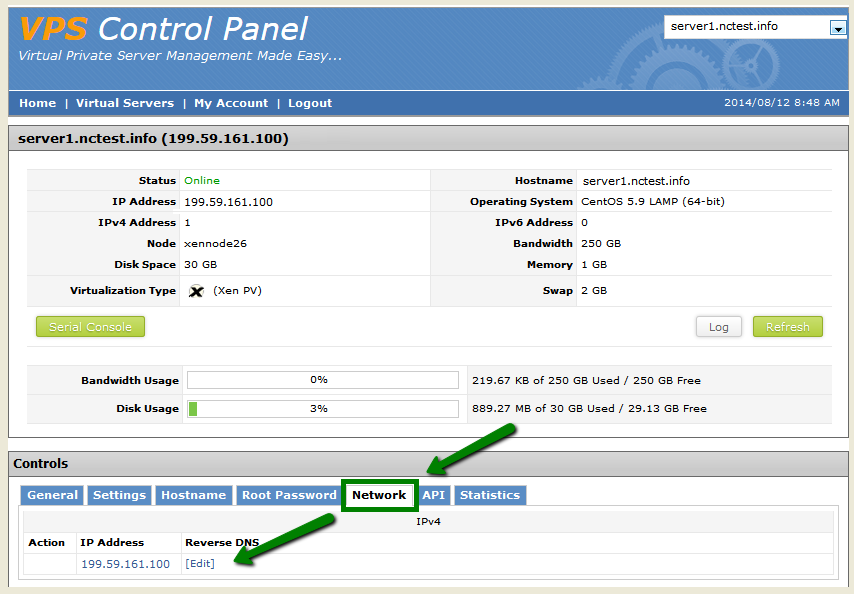
- Pop-up window will show up, input a new or edit the existing PRT record. Click on Update

Allow up to 24 hours to pass (in some cases up to 72) for the record to propagate.
NOTE: no additional update of PTR record in WHM is required.
8. How to check SolusVM log
- Click on Log button on the main page

- Here you can check certain actions like VPS reboot or root password change, which were made from SolusVM panel

- You can also look up your VPS current disk space usage and remaining bandwidth

This is it!
Check our VPS Hosting – Getting Started guide for more information about VPS setup.
Need any help? Contact our Helpdesk
About Author
