How to manage WordPress user roles
Apart from the main Administrator account, WordPress supports so-called users with additional privileges. Such users can access the Dashboard but their operations are restricted to specific options.
There are 5 types of WordPress users:
Subscribers – basic account type assigned to all website visitors who signed up on your website. They do not have any special privileges. Logged in subscriber can only edit his own profile settings.
Contributors can create new posts and approve comments.
Authors – users who can create new posts, approve comments and upload media files, however they can’t access WordPress website settings and edit existing posts of other users.
Editors – these users can edit/create all posts and pages, add/remove media files of any other user.
Administrators – accounts with highest level of access, they can edit any WordPress content items or settings.
You can change account type in WordPress dashboard > Users section.
In order to create new user click on Add new option
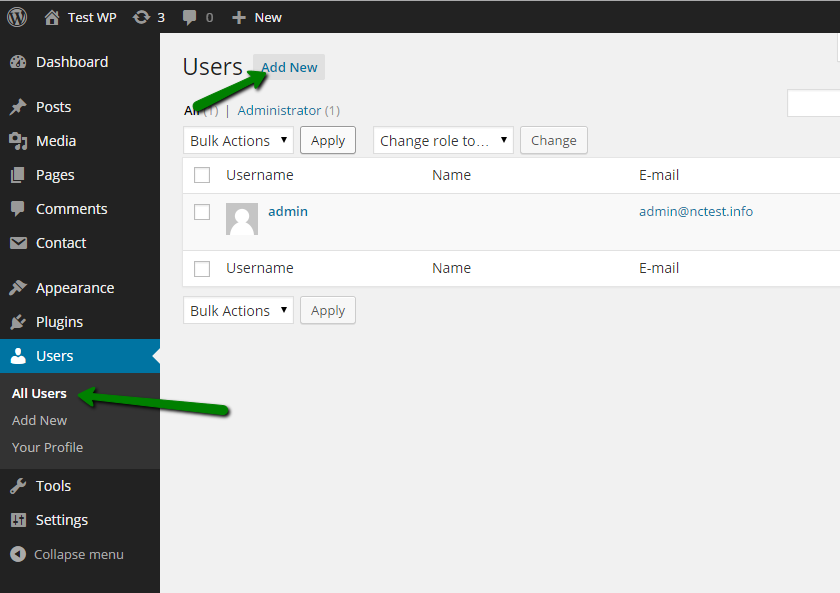
On the next page specify Username, E-mail, Password and optionally First and Last Name, Website for this account, and select desirable role from drop-down list. Once done click on Add New User
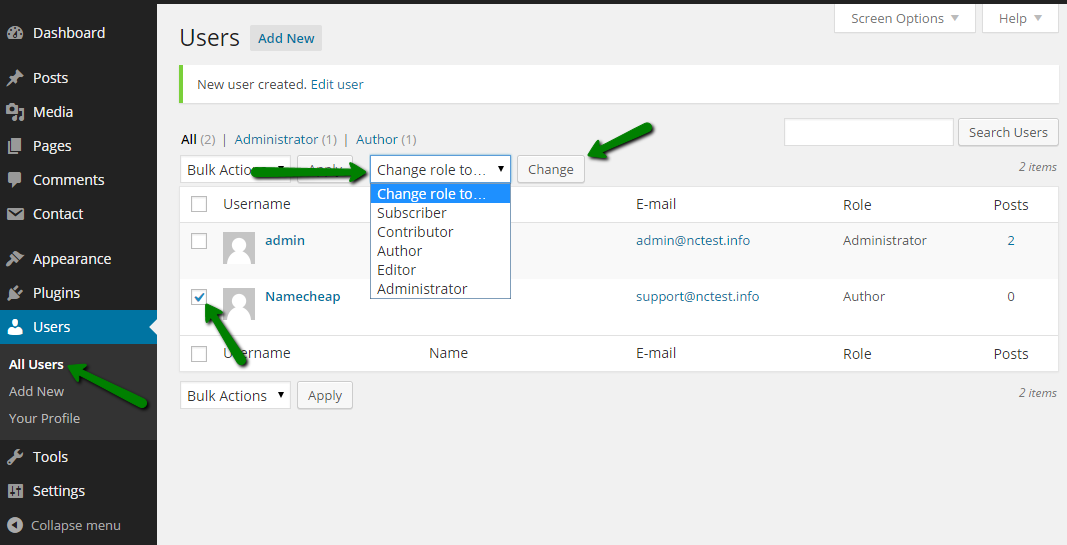
If you wish to change the role of the existing user go back to All Users list, check the user in question and set the new role via Change role to… option
You can also change user role manually in database via phpMyAdmin.
It is strongly recommended to backup the databasebefore proceeding.
1. In cPanel go to phpMyAdmin and select your WordPress database (you can check the database name of your installation in wp-config.php file, line define(‘DB_NAME’, ‘databasename’); ).
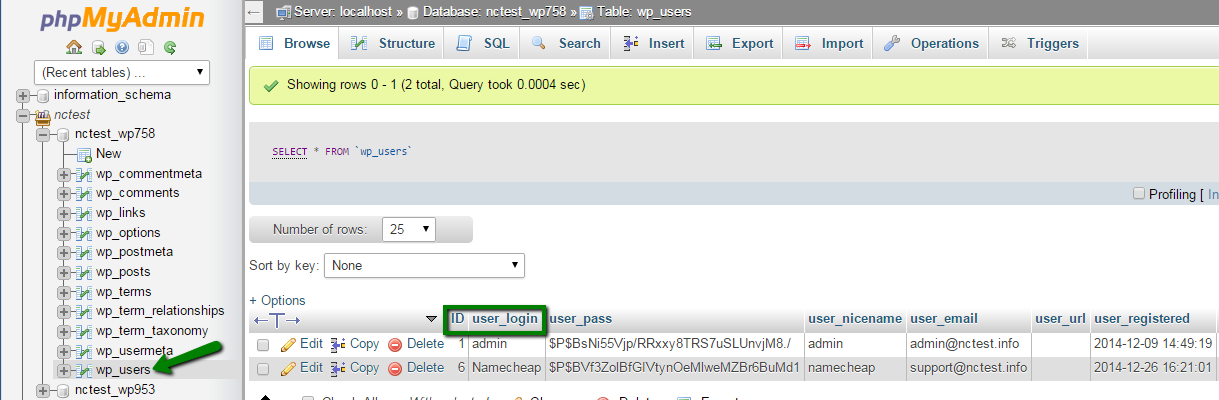
2. Select wp_users table, locate account role you want to change and memorize its ID, you will need it later.
In this example we will change role of “Dream Line IT Solution” account, its ID is 6
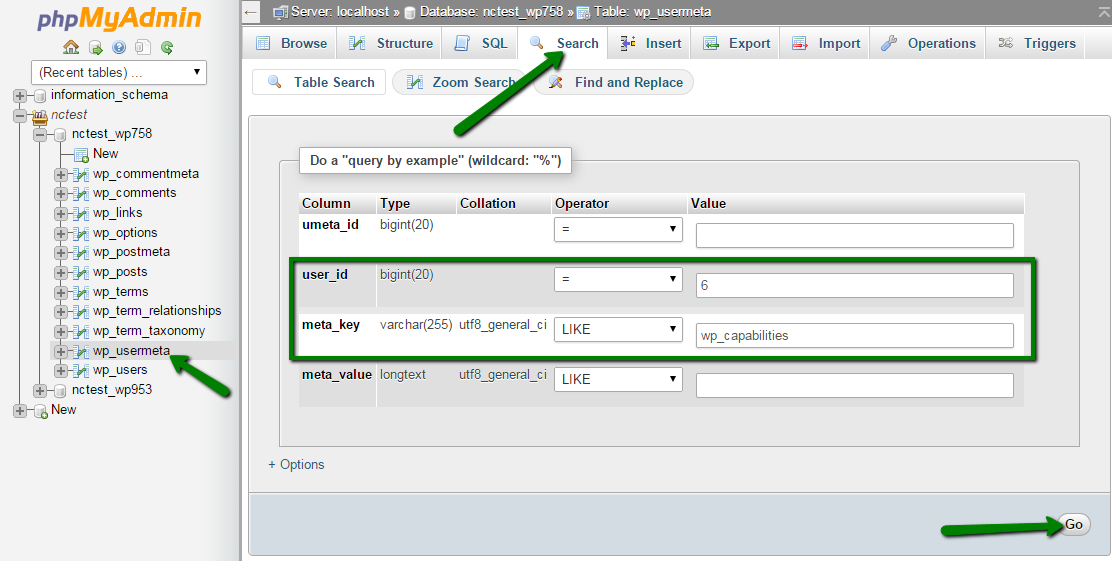
3. Now go to wp-usermeta table, click on Search.
Input ID of user to user_id field and wp_capabilities to meta_key field, click on Go
4. You will see database cell containing record specifying the current Role of the user.
In our example it is author. In order to change it click on Edit
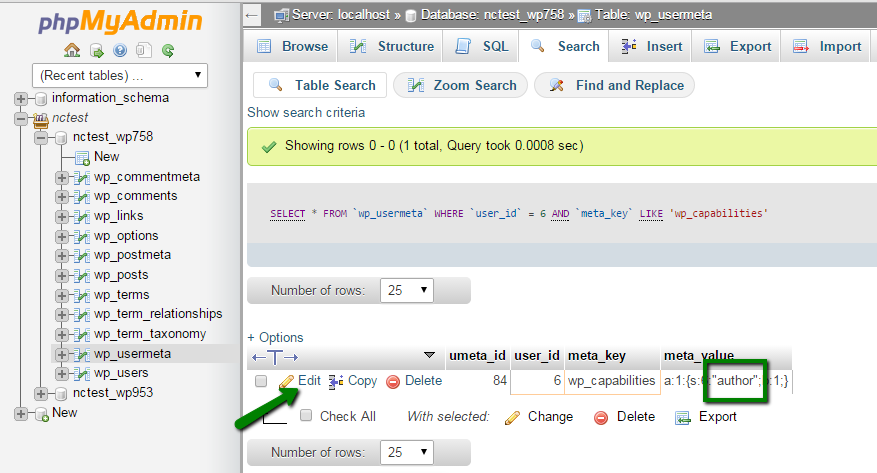
5. On the next page you will need to replace current meta_value with the new one according to the role you need:
a:1:{s:10:”subscriber”;b:1;} – Subscriber
a:1:{s:11:”contributor”;b:1;} – Contributor
a:1:{s:6:”author”;b:1;} – Author
a:1:{s:6:”editor”;b:1;} – Editor
a:1:{s:13:”administrator”;b:1;} – Administrator
In our example we are making “Dream line IT Solution” user an administrator by inserting corresponding code in his wp-usermeta database cell
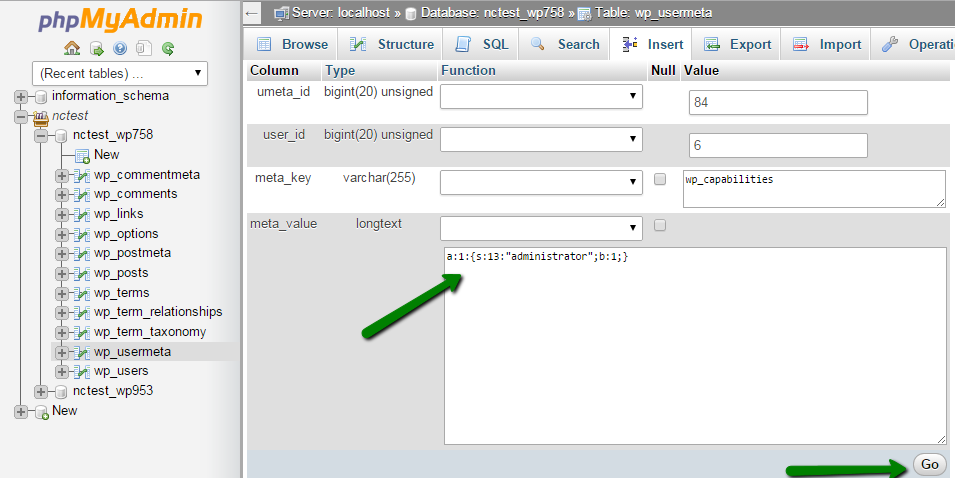
This is it!
Need any help? Contact our HelpDesk
About Author
