How to connect to database using NaviCat MySQL client
Remote MySQL connection is disabled on our shared servers due to security reasons, but you can easily setup SSH tunnel between your PC and our server using SSH-tunneling with the MySQL port (3306) forwarding.
To connect to your MySQL database with Navicat software you should do the following:
1. Contact our hosting support via live chat or via ticket system in order to enable SSH access for your account.
2. Open your Navicat application >> Connection >> General tab, and fill out the fields as follows:
Host Name/IP Address: localhost
Port: 3306
User Name: your database created user
Password: your database user password

Then, navigate to tab SSH, check mark the box Use SSH tunnel and fill out the fields as shown below:
Host Name/IP address: your server host name
Port: 21098
User Name: your cPanel username
Authentication Method: Password
Password: your cPanel password

Once done, press Ok to save the connection settings. You will see your new connection on the left
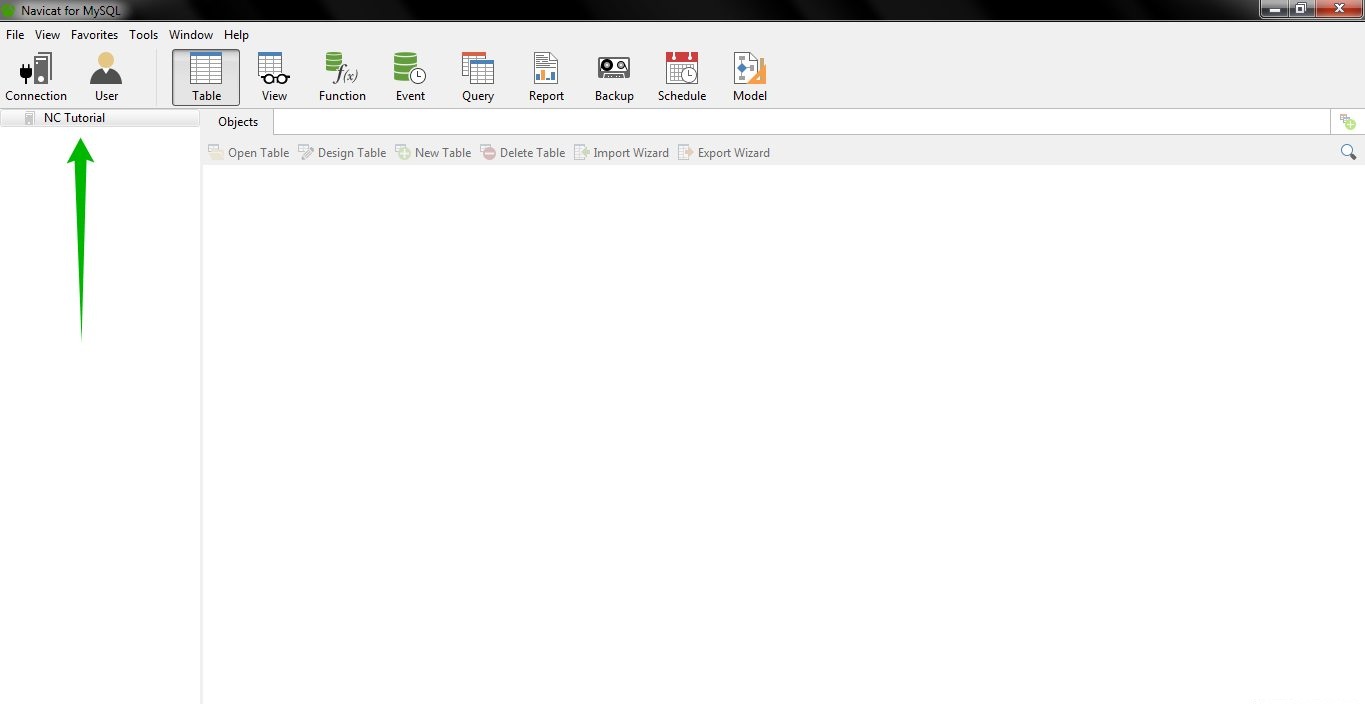
Double click on it to connect to your database

You have successfully connected to your database with Navicat!
Should you require additional assistance, feel free to contact our HelpDesk.
About Author
