How to change Joomla website template
The article describes how to install, change and remove a template in Joomla 3.3.6.
A template is the type of extension that changes the layout, style and overall look of the website. Joomla templates are divided into two types:
1) Front-end templates (changes the style of the website and presents the pages in a new view to the visitors)
2) Back-end templates (changes the view of the Administrative Interface and administrative functions).
When you install Joomla, some templates are installed by default. It is very important to find the one that will keep your website fast, secure, functionally optimized and pretty. Some links to template resources can be found via the Joomla Resource Directory and Joomla Extension Directory on Joomla official website.
Template installation
It is possible to install the template in Joomla in a few ways. Log into the back-end of your Joomla site (Administrative Dashboard) via http://yourdomain.com/administrator/ > Extensions > Extension Manager menu

In here you can install the template in 3 ways:
1. Install from computer
Open Upload Package File tab > choose the corresponding .zip file with your template on PC > click Upload and Install button

2. Install from directory
First off, you need to upload the backup of your template to your account (either via cPanel or via FTP):
– go to cPanel > File manager
– create a new folder with the name of your template in templates folder of your Joomla installation

– access the created folder and click Upload. Select a .zip file with your new template

– once the archive is uploaded, press on Extract button

– once the archive is extracted, go to Joomla Dashboard > Extensions > Extension Manager > choose the option Install from Directory tab > enter path to the new template on the server and click Install

3. Install from URL
Enter the link or URL to the template you would like to install and click Install.

Once done, you will receive successful installation notification

Template activation
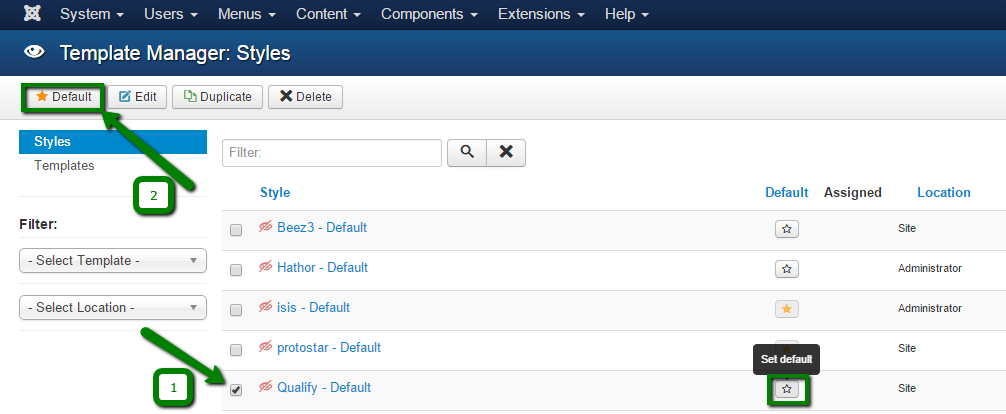
In order to enable the installed template go to Joomla Dashboard > Extensions > Template Manager

Here you will see the list of the installed and available templates. The Location in front of each template means whether the template is for the website itself (front-end template) or for the Administrative Dashboard (back-end template). There can be only one default front-end template and one default back-end template.
In order to set the template as default, click on Default button in the top menu, or simply click on the star icon next to it
Once the template is set as default, you will get the success message

That is it, your website now has the new template!
Template removal
If you wish to remove or uninstall the template, first of all, it should not be set as default.
Go to Extensions > Extension Manager > choose Manage on the left side > select the template to be deleted > click Uninstall in the top menu

When the template is removed, you will get the update that it has been deleted from your account. The folder of the plugin will be automatically removed from templates folder in Joomla installation directory

This is it!
Need any help? Contact our HelpDesk
About Author
