How to block IPs from accessing your website
Sometimes you might need to prevent access to the website or whole hosting account for specific visitors, for instance when developing the website or in case of DDoS attacks.
Below you can find guidelines on setting up automatic IP block, manual IP block and block from specific country.
For automatic IP block cPanel provides special IP Deny Manager tool.
NOTE 1: IP Deny Manager is available for all shared hosting plans starting from Professional one. So if you have Value plan with us, you should set denying rules in .htaccess file manually.
NOTE 2: sometimes it is easier to block all and allow access for certain IPs. Such rules are to be manually configured in .htaccess file, as IP Deny Manager provides possibility only to block IPs.
NOTE 3: IP Deny Manager blocks access to all hosted domains and services under your account.
To block IP using IP Deny manager follow the steps below:
1. Navigate to IP Deny Manager menu in cPanel

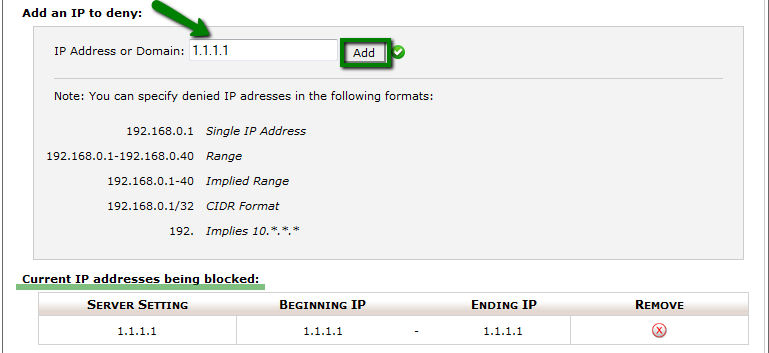
2. Enter the IP address that should be blocked to the ‘IP Address’ field and click on Add button.
It will be added to the list of blocked IPs.
You can always unblock IP by clicking Remove next to the IP address in question
Below you can find several examples for manual blocking configuration.
These lines need to be added to the .htaccess file under all existing rules
– block users with XXX.XXX.XXX.XXX IP address, allow access to everybody else
order allow,deny
allow from all
deny from XXX.XXX.XXX.XXX
– block all visitors except for the specific admin IP for example, or yourself
order allow,deny
allow from XXX.XXX.XXX.XXX
deny from all
– redirect visitors from XXX.XXX.XXX.XXX IP address to another URL
RewriteCond %{REMOTE_HOST} ^XXX\.XXX\.XXX\.XXX$
RewriteRule .* http://example.com [L,R=301]
– redirect all requests, except for the ones coming from XXX.XXX.XXX.XXX IP address, to another URL
RewriteEngine On
RewriteBase /
RewriteCond %{REMOTE_HOST} !^XXX.XXX.XXX.XXX
RewriteRule .* http://example.com [R=302,L]
Do not forget to replace XXX.XXX.XXX.XXX with the IP address you would like to allow or block.
To block/allow access from a specific country, you need to list all IP subnetworks that belong to this country.
This can be quite challenging for manual configuration, so it is recommended to use special online tools that have access to such country-specific IP databases.
Example of such an online resource is http://incredibill.me/htaccess-block-country-ips
You will need to choose the country and then copy the generated code to your .htaccess file.
The code will look like as follows:
– block access from a specific country
order deny,allow
deny from 81.52.168.0/23 …
deny from 188.138.10.163/32
deny from 188.138.78.129/32
allow from all
– allow access from just one specific country
order allow,deny
allow from 81.52.168.0/23 …
allow from 188.138.10.163/32
allow from 188.138.78.129/32
deny from all
This is it!
Need any help? Contact our Helpdesk
About Author
