How to flush WordPress caching plugins
Caching plugin is one of the website optimization methods that speed up the loading of your site. What it basically does is make a static copy of your dynamic site to reduce server rendering times.
You need to regularly clear the cache of such plugins as it may display the old version of the website to you and your visitors.
In this article we will show you how to flush the cache of the most popular WordPress plugins:
W3 Total Cache
WP Super Cache
WP Fastest Cache
Hyper Cache
Quick Cache
W3 Total Cache
If you are using this plugin, you can clear cache the following way:
– log into WordPress Admin Dashboard
– go to Performance > Dashboard

– click on Empty all caches option
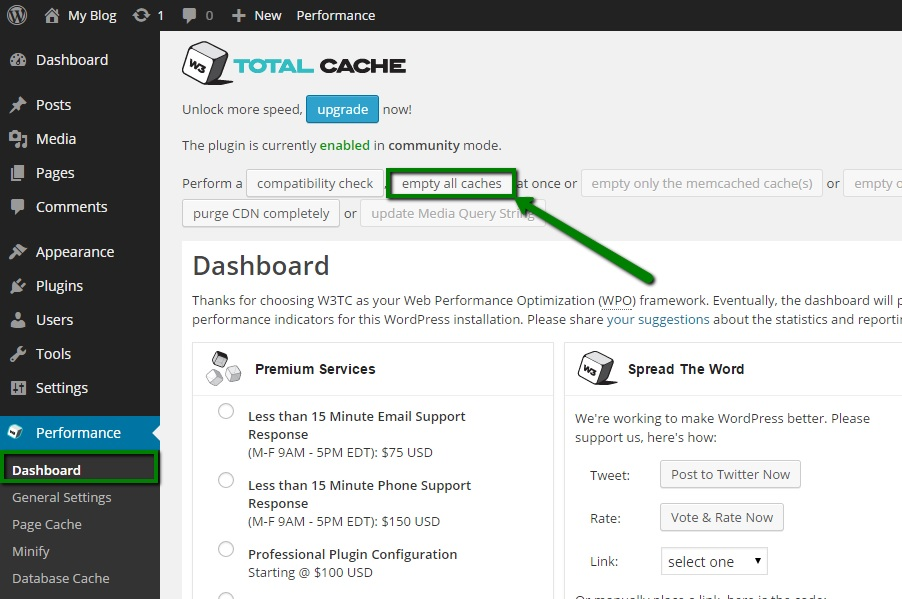 – once done, you will get the notification that the cache has been successfully emptied

WP Super Cache
If you are using WP Super Cache plugin, you may clear cache following these instructions:
– log into WordPress Admin Dashboard
– go to Settings > WP Super Cache

– click on Contents tab

– here you will be able to see the state of your cached data and the last time it was generated.
The List of all cached files button will show you the list of files that are currently in cache.
Clicking on Delete Expired if you wish to delete expired files or Delete cache in order to delete all cached files

WP Fastest Cache
If you use WP Fastest Cache plugin, do the following to clear the cache:
– log into WordPress Admin Dashboard
– go to WP Fastest Cache

– navigate to Delete Cache tab
– click on Delete Chace or Delete Cache and Minified CSS/JS

– when the cache is cleared, you will get the corresponding message

Hyper Cache
If you have Hyper Cache installed, follow these instructions for clearing the cache:
– log into WordPress Admin Dashboard
– go to Settings > Hyper Cache

– click on Clean the whole cache button

At the end you will get a message saying that the cache is cleared

Quick Cache
For clearing cache in Quick cache plugin you need to do the following:
– log into WordPress Admin Dashboard
– navigate to Quick Cache

– press Clear button in the top right corner of the page
 – once done, you will get a notification that the cache is successfully cleared

This is it!
Need any help? Contact our Helpdesk
About Author
